Help

Quote to paid

One job from the first price to money in the bank.

Price your first quote

Garment, sizes and print, with the total worked out as you type. About 5 minutes.

A quote's total changing as sizes are typed and the turnaround is changed. A made-up example shop.
  1. Start a quote Quotes, then New quote. Choose the customer, or add a new one.
  2. Pick the garment Search your catalogue, or type the garment and its cost. The colour and cost by size fill in.
  3. Type the sizes Enter how many of each size. Bigger sizes add their extra by themselves.
  4. Add the print Choose the method and where it goes. The price comes from your list for the whole quantity.
  5. Check the total The total shows ex GST, the GST and inc GST. It saves as you go.
Send it for approval

A link that opens on any phone. Your customer approves with their name. About 3 minutes.

A customer approving a quote on their phone. A made-up example shop.
  1. Send the quote Press Send on the quote. Email it, or copy the link into a text or message.
  2. See when it's opened The quote shows when the customer first and last looked at it.
  3. They approve The customer types their name and ticks approve. The job lands on your board straight away.
  4. Follow up by itself Switch on the automation that follows up quotes with no reply after the days you choose.

Proofs that get it right first time

Customers pin exactly what to change, or approve. About 4 minutes.

A logo placed on a navy tee in the mockup builder. A made-up example shop.
  1. Make the mockup On the job, open Mockup, add the logo and place it at real print size. It warns you if the art is too low quality.
  2. Send the proof Save it to the job as a proof and send it. Choose how many people need to sign off.
  3. Read the pins The customer taps the proof to pin a change, approves with small changes, or asks for a new version.

The job board

Every approved job, from artwork to out the door. About 4 minutes.

A job card dragged to the next stage on the board. A made-up example shop.
  1. Drag a card Move a job to the next stage as the work moves through the shop.
  2. Read the card Each card shows artwork, blanks, payment and tasks in words. When they're all done, it's ready to print.
  3. Other views Switch to the list, calendar or schedule to plan the week.

Order the blanks

Approved jobs become purchase orders, grouped by supplier. About 4 minutes. On Shop and Pro, or an add-on on Starter.

Garments to order from approved jobs, ticked and made into purchase orders. A made-up example shop.
  1. See what to order Purchasing adds up every approved job by supplier, style, colour and size.
  2. Tick and make orders Tick what to order and press Make purchase orders. Jobs still waiting on a deposit start unticked.
  3. Send and receive Send each order to its supplier, then mark it received when the boxes arrive. Part deliveries are counted.

Invoice the job

A proper tax invoice in one click. About 3 minutes.

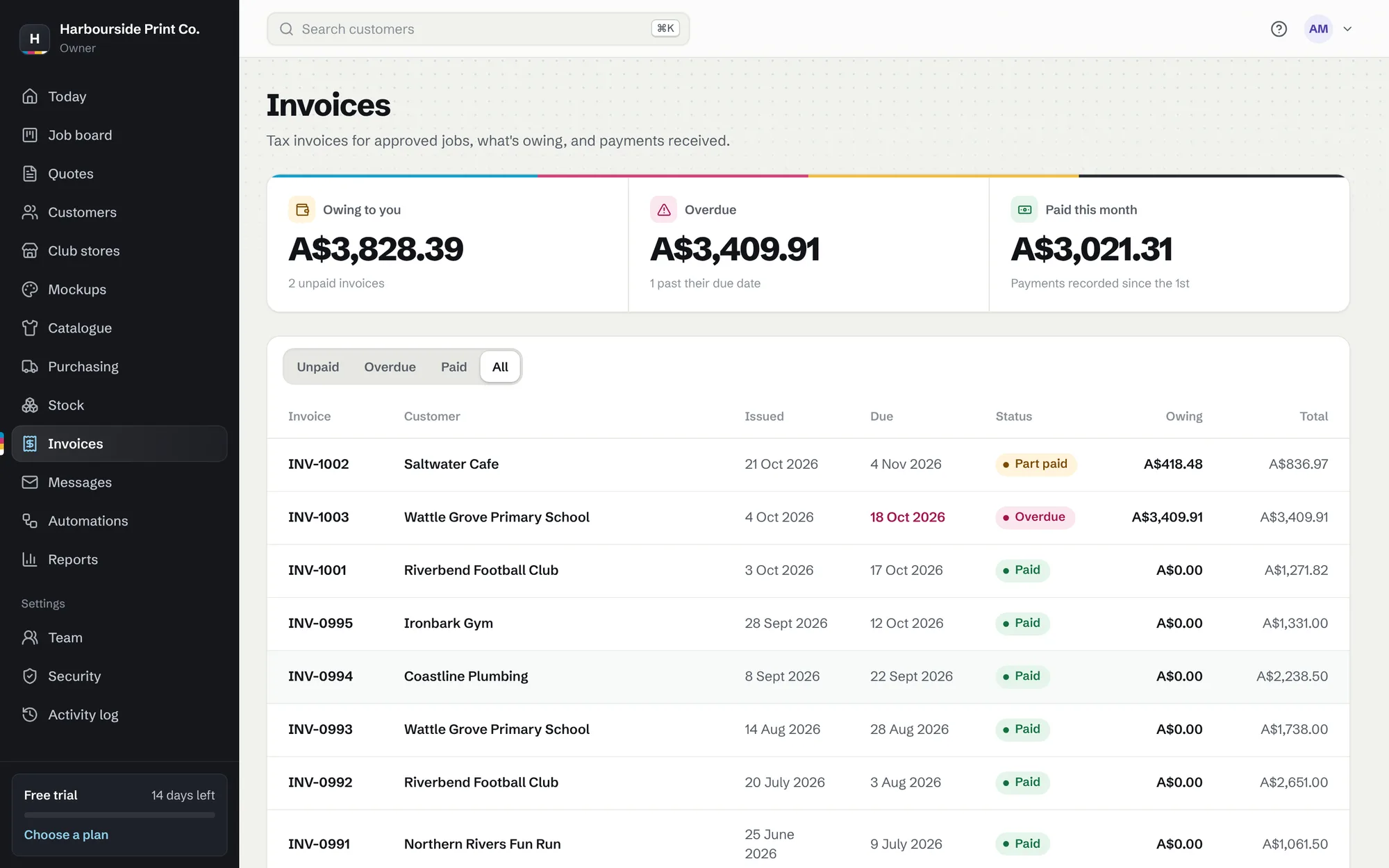
Invoices showing paid, part paid and overdue
Invoices showing paid, part paid and overdue. A made-up example shop.
  1. Create the invoice On an approved quote, press Create invoice. It copies every line, so it never changes afterwards.
  2. Record payments Open the invoice to record a bank transfer, PayID or cash. Part payments are fine.
  3. See who owes what Invoices shows what's owing, what's overdue and what came in this month.

Take card payments

Customers pay by card, Apple Pay or Google Pay from their link. About 5 minutes.

  1. Connect Stripe Settings, Payments, then connect your own Stripe account. The money goes straight to you.
  2. Ask for a deposit Choose a deposit percentage, and customers pay it when they approve.
  3. Payments record themselves A card payment marks the invoice paid, and goes into Xero or QuickBooks if they're connected.