Help

Your first day

Set up your shop so quotes, invoices and emails look right from the start.

Your shop's details

The name, ABN and bank details that print on every quote and tax invoice. About 3 minutes.
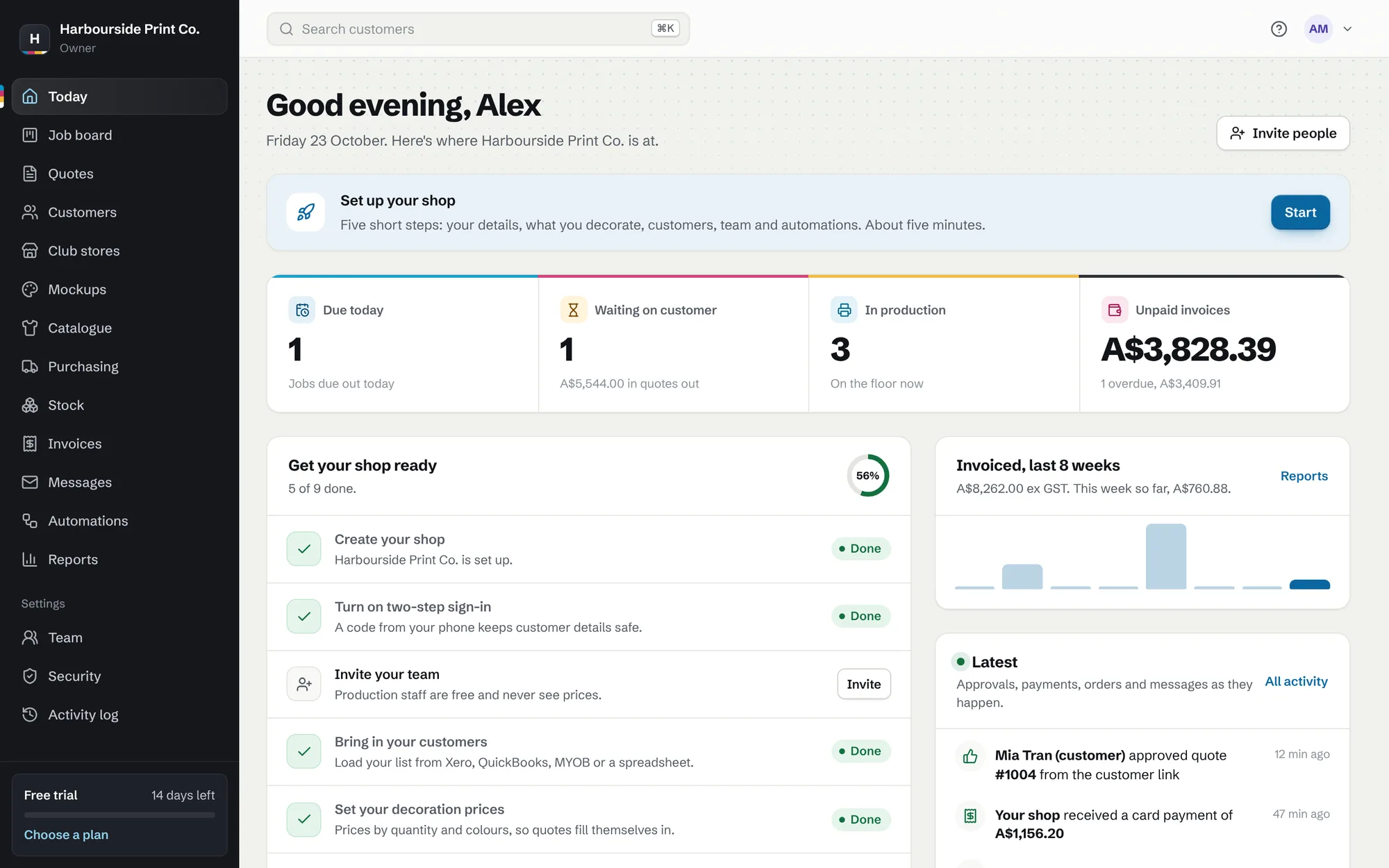
Today, the first screen after signing in, with the set-up checklist
Today, the first screen after signing in, with the set-up checklist. A made-up example shop.
  1. Open Shop details Go to Settings, then Shop details. Add your legal name, ABN, address, phone and email.
  2. Add your bank details Your BSB, account number and PayID print on every tax invoice, so customers know how to pay.
  3. Choose your numbers Pick the starting quote number and the letters before it, like HP-1001. Invoices count on from there.
  4. Set your quoting defaults Your usual markup on blanks, how long quotes stay valid, and the terms printed at the bottom.
Your price lists

Set print prices once, and every quote uses them. About 6 minutes.

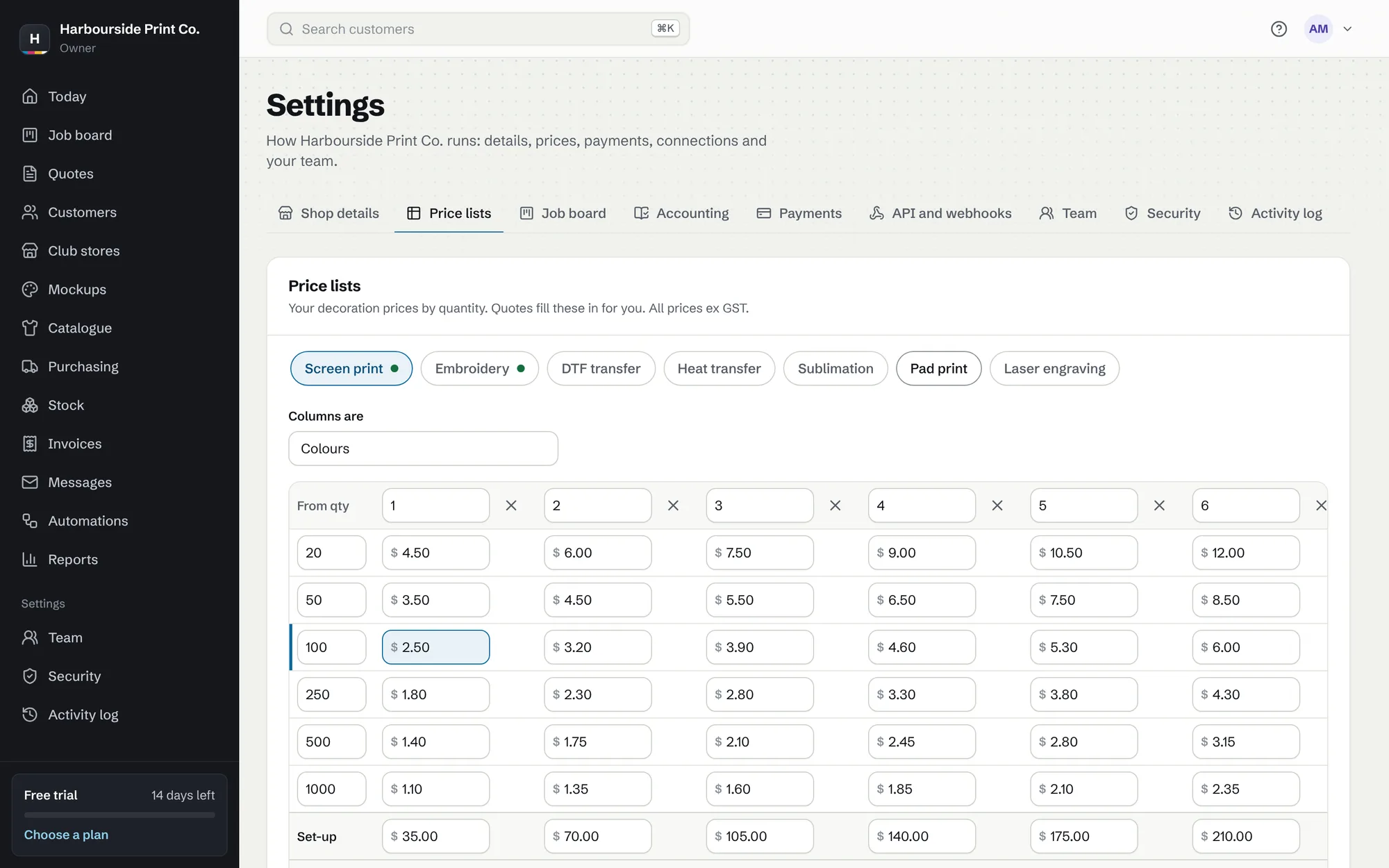
A screen print price list by quantity and number of colours
A screen print price list by quantity and number of colours. A made-up example shop.
  1. Start from the starter lists Settings, Prices has a list for each method you do: screen print, embroidery, DTF, DTG and transfers. Change the numbers to yours.
  2. Quantity breaks across the top Each row is a quantity, like 20+, 50+ and 100+. Each column is the colours, stitches or print size.
  3. Set-up charges and dark garments Add a set-up charge per screen or design, and an underbase price that's added by itself on dark garments.
  4. Markup tables On Shop and Pro, set markup by what a blank costs and how many are ordered, for a supplier, brand or category.

Bring your team in

Invite the office and the floor, each with the right access. About 3 minutes.

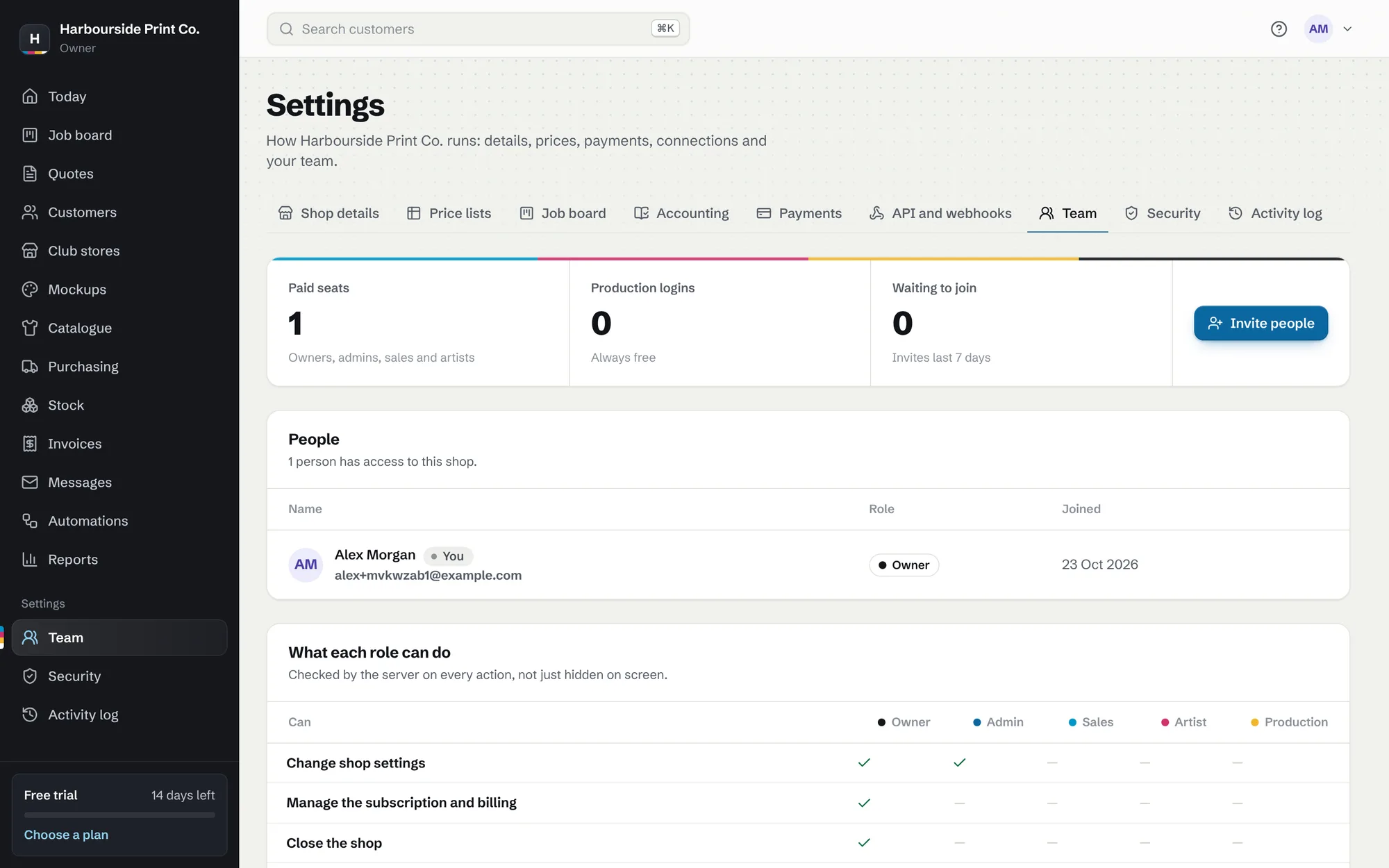
The Team page with roles for each person
The Team page with roles for each person. A made-up example shop.
  1. Invite people Settings, Team, then Invite people. Choose a role: owner, admin, sales, artist or production.
  2. Production logins are free People on the floor see the board, job sheets and calendar, never prices or costs. They don't count as office users.
  3. Two-step sign-in Owners and admins must use a code from their phone. Anyone can turn it on in Settings, Security.

Bring your customers across

Load your customers from Xero, QuickBooks, MYOB or a spreadsheet. About 4 minutes.

  1. Export from your old system Download your contacts as a CSV file from Xero, QuickBooks, MYOB, your old shop software or a spreadsheet.
  2. Load the file Customers, then Import. You see exactly what will be added before anything changes.
  3. Nothing doubled Customers you already have are left alone, and their contacts come across too.